
Introduction
Audio quality plays an essential role in creating an immersive virtual reality experience. For Oculus headset users, encountering microphone issues can interfere with communication and spoil the enjoyment. This guide will identify common problems causing the Oculus microphone not to work and provide actionable solutions to optimize your VR audio setup.
Understanding Oculus Microphone Problems
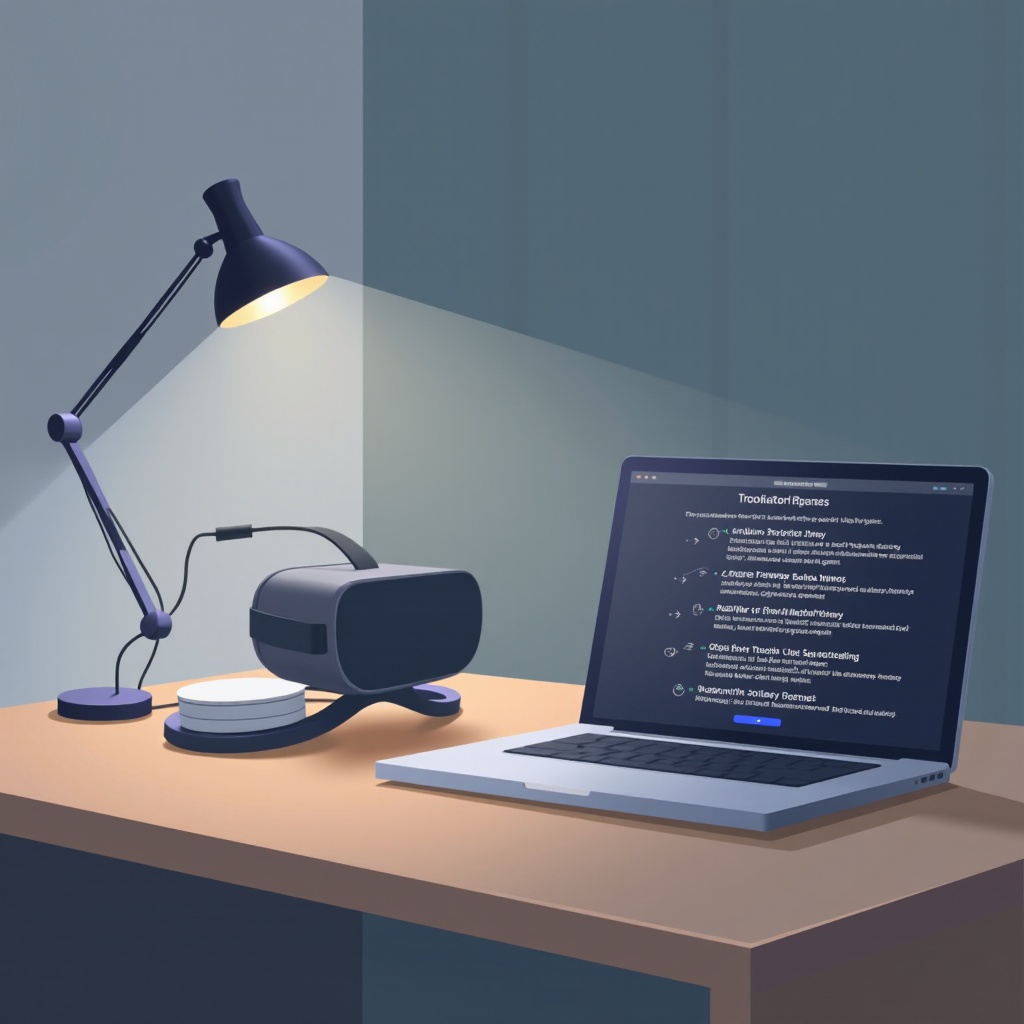
Before diving into solutions, it’s important to comprehend the common causes of microphone issues in Oculus headsets. This knowledge helps target the right solution.
- Common Causes: Faulty connections, outdated software, mismatched settings, or even hardware malfunction often cause microphone problems.
- Identifying Hardware vs. Software Issues: Start by discerning whether the issue is hardware or software. Examine cables and connections for any damage, and ensure settings are correctly configured.
Having a grasp on possible causes leads to effective troubleshooting. Let’s now move on to basic troubleshooting steps.
Basic Troubleshooting Steps
After uncovering potential causes, address the Oculus microphone not working issue with these basic troubleshooting steps:
- Checking Audio Settings: Confirm the microphone is not muted and configured as the default device. Ensure volume levels are set correctly.
- Updating and Reinstalling Oculus Software:
- Launch the Oculus app on your PC.
- Navigate to ‘Settings’ and click on ‘Beta.
- Tap ‘Restart Oculus’ to perform an update or reinstall the software if needed.
- Testing with Other Applications: Use a voice recorder or other apps to check mic functionality and isolate whether the issue lies with specific software.
Successfully completing these basics provides a solid foundation. For nagging issues, let’s explore advanced solutions.
Advanced Solutions for Persistent Issues
If microphone problems persist, the following advanced solutions may address deeper technical issues:
- Resetting the Oculus Headset:
- In the Oculus app, go to ‘Settings.
- Select ‘Devices,’ locate your headset, and choose ‘Factory Reset.
- Updating Drivers and System Requirements: Ensure both your graphics and audio drivers are updated. This can be achieved through the Device Manager on your PC.
- Utilizing Oculus Support Tools: Check the ‘Oculus Support Center’ for specialized tools and guidance that pertain to your headset model.
Having tackled potential technical issues, enhance the experience by optimizing audio settings.
Optimizing Audio Settings for a Better VR Experience
Fine-tuning your audio settings can boost microphone performance and create a superior VR experience:
- Configuring Windows Sound Settings: Adjust sound input by navigating to the Control Panel, selecting ‘Sound,’ going to the ‘Recording’ tab, and setting the Oculus microphone as the default device.
- Third-Party Software Enhancements: Consider leveraging applications like VoiceMeeter for improved audio and mic settings, offering better control and sound fidelity.
Optimized settings pave the way for a flawless VR experience. Now, turn attention to preventative care to avert future problems.
Preventative Measures and Maintenance Tips
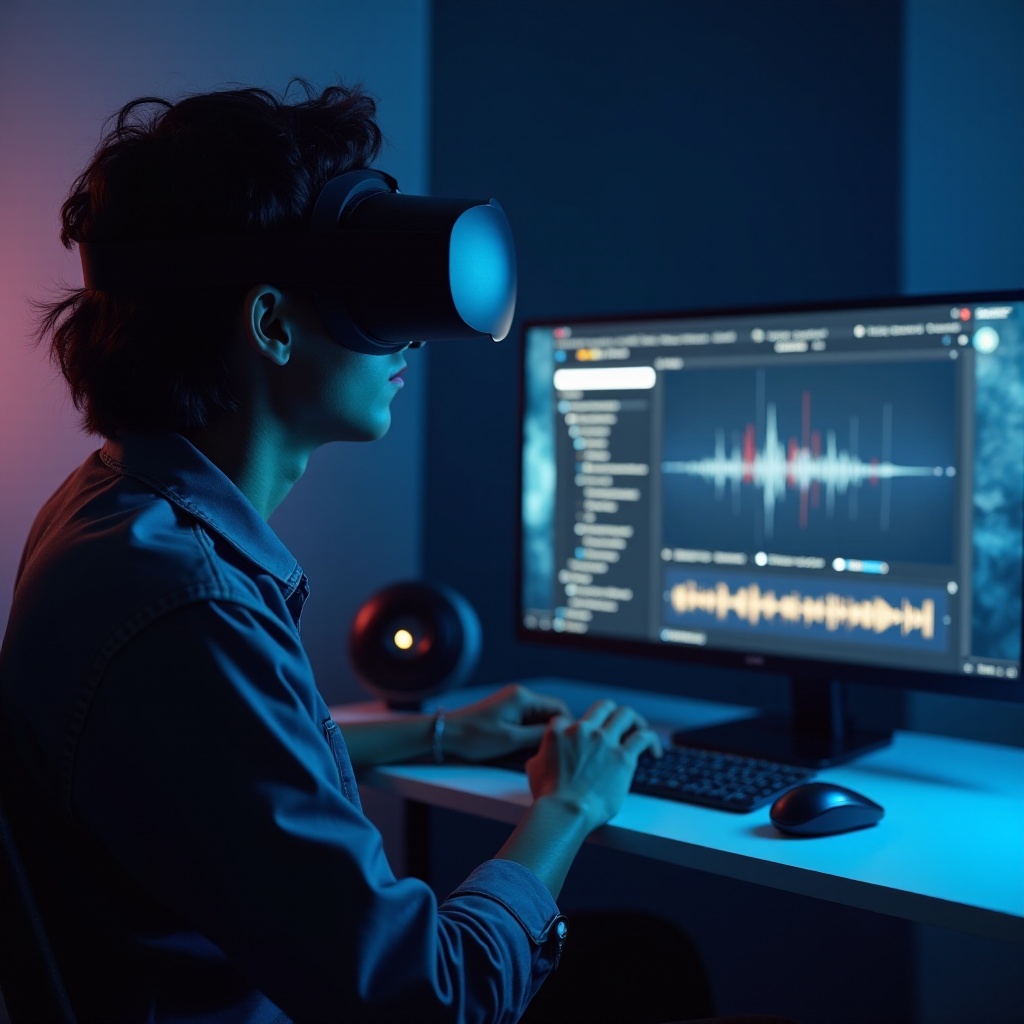
To ensure the long-lasting performance of your Oculus microphone, adopt these preventative strategies:
- Regular Software Updates: Keep your Oculus software and firmware up to date to preemptively tackle potential bugs.
- Proper Headset Maintenance and Handling: Store your headset securely, routinely clean the microphone area, and handle it gently to avoid hardware damage.
Implementing these measures not only extends your headset’s life but also ensures high-quality audio. Following this structured approach, you’re on the path to resolving Oculus microphone problems effectively.
Conclusion
To summarize, resolving Oculus microphone issues entails understanding their root causes, applying both basic and advanced solutions, optimizing settings, and maintaining your device diligently. These steps will restore your Oculus audio to its full capabilities. Should difficulties persist, contacting professional support could provide the additional help needed.
Frequently Asked Questions
Why is my Oculus microphone not working even after software updates?
Check all physical connections, ensure your mic is set as the default device, and test with other applications.
How can I determine if my Oculus microphone issue is hardware-related?
Inspect cables for damage, try connecting the headset to a different device, or test with another microphone.
Are there any recommended third-party applications for improving Oculus microphone performance?
Yes, applications like VoiceMeeter can help enhance and control audio settings for better sound quality.