
Introduction
Your PS5 suddenly powers on only to shut down moments later, leaving you baffled. This common problem can disrupt your gaming sessions and may suggest deeper issues with your console. Solving this issue promptly is essential for maintaining your console’s performance and ensuring a smooth gaming experience.
Understanding the Problem
When addressing why your PS5 turns on and then off, it’s important to explore both hardware and software possibilities. Common culprits include a faulty power supply or corrupted system software. Recognizing these causes helps streamline your troubleshooting process, enabling you to quickly pinpoint the issue.
Once you differentiate between hardware and software issues, you have a clearer path to effective solutions. Understanding these initial concepts will guide your next steps.
Initial Troubleshooting Steps
Begin by examining the simplest potential causes related to your power setup and console conditions.
-
Checking Power Connections: Ensure that all cables are firmly connected. Loose connections frequently lead to sudden shutdowns. Verify that the power outlet or strip is operational and matches your console’s requirements.
-
Assessing the Power Supply: Try using a different power cable or outlet. Swap components to identify if a faulty outlet or cable is causing the problem.
Once these foundational steps are covered, you can move to address software-related issues.
Software Solutions
Software glitches are sometimes at the heart of the PS5 power cycle issue. Pursuing software-based solutions can preemptively eliminate this possibility.
-
Updating the Firmware: Regular updates to your PS5’s system software are crucial. These updates fix known bugs and compatibility issues, so ensure your console’s firmware is current by checking ‘System Software Update’ settings.
-
Rebuilding Database Instructions: If the problem persists, rebuilding the database may help. This procedure clears and reorganizes the system cache. Boot your PS5 in Safe Mode, select ‘Rebuild Database,’ and follow the prompts.
With software concerns managed, delve into potential hardware issues for a comprehensive approach.
Investigating Hardware Issues
Hardware issues can be responsible for your PS5’s sudden shutdowns, particularly overheating and physical damage.
-
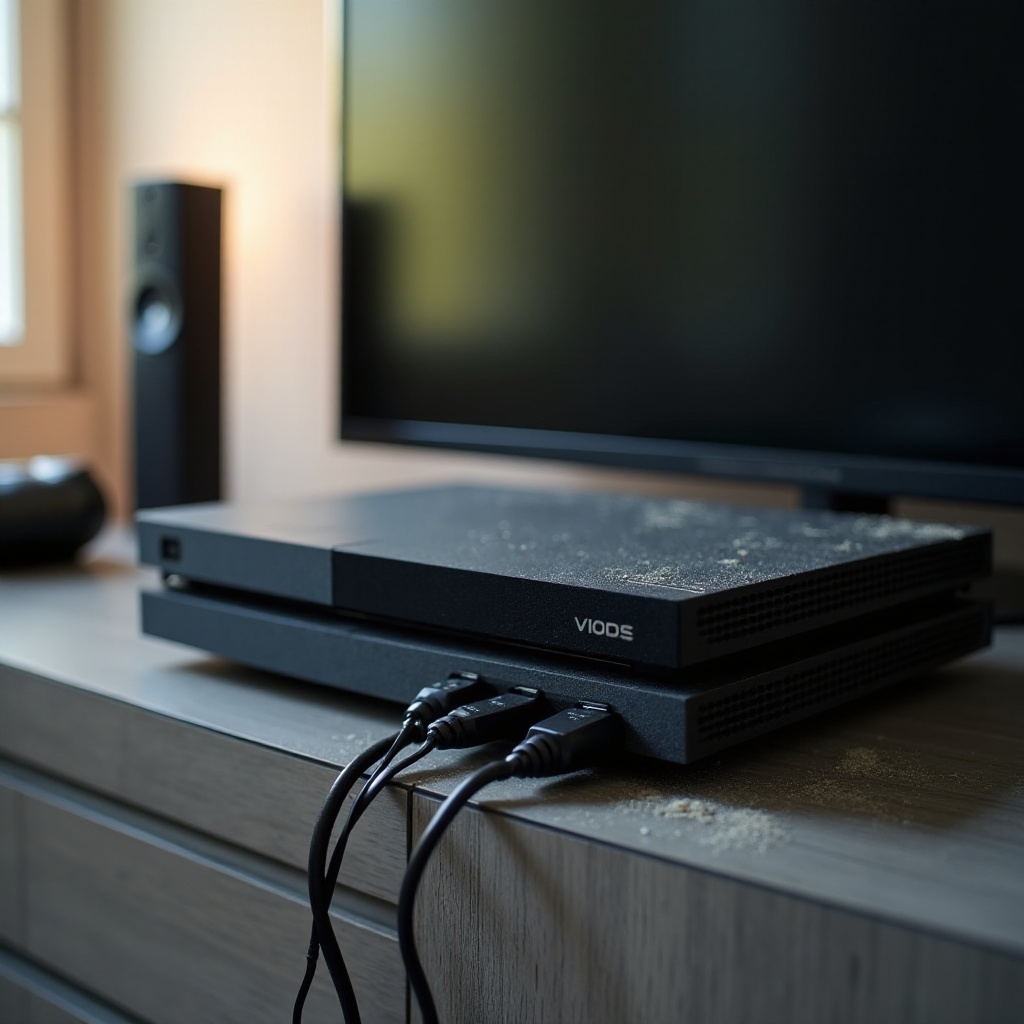
Cooling and Ventilation Tips: Overheating can shut down your PS5 without warning. Ensure your console sits in a well-ventilated space and routinely clean vents and fans to prevent dust accumulation.
-
Evidence of Internal Damage: Physically inspect your console for signs of damage, such as wear around the power input. For suspected internal damage like blown capacitors or malfunctioning fans, professional repair is advised.
Understanding hardware factors is vital, but implementing preventive steps can further safeguard your console.
Long-Term Preventive Measures
Implement regular checks and optimize your console’s environment to prolong its lifespan.
-
Maintenance Tips for Console Care: Routinely clear dust and verify connections. Turning off the system when not in use, instead of relying solely on rest mode, reduces strain.
-
Ideal Environment Setup: Keep your PS5 away from direct heat or sunlight. Using a dedicated power strip can protect against electrical surges, ensuring a reliable power supply.
Proactive maintenance strengthens your troubleshooting outcomes, ensuring robust PS5 operation.
Conclusion
To resolve the issue of your PS5 turning on and off, thoroughly examine power connections, employ software solutions, scrutinize hardware, and adopt preventive strategies. This multidimensional approach enhances your console experience, minimizing disruptions. Reach out for professional support if these strategies don’t resolve your problem.
Frequently Asked Questions
What should I do if my PS5 turns on then off repeatedly?
Start by checking the power connections and trying a different outlet. If the issue persists, update the system software and consider rebuilding the database.
Can overheating cause the PS5 to shut off?
Yes, overheating is a common cause. Ensure proper ventilation, regularly clean the console, and check for any blocked vents or dust buildup.
When should I contact Sony support?
If basic troubleshooting steps don’t resolve the issue, or if you suspect hardware failure, it’s best to contact Sony support for professional advice or repair services.