
Introduction
Experiencing a dark MacBook screen can be both a frustration and a hindrance to getting things done. Whether working on important tasks or enjoying entertainment, a dim screen can severely impact your experience. This guide takes you through the likely causes behind a dark screen on your MacBook and provides clear solutions to fix the problem. Additionally, we’ll explore preventive measures to ensure the issue doesn’t arise again.
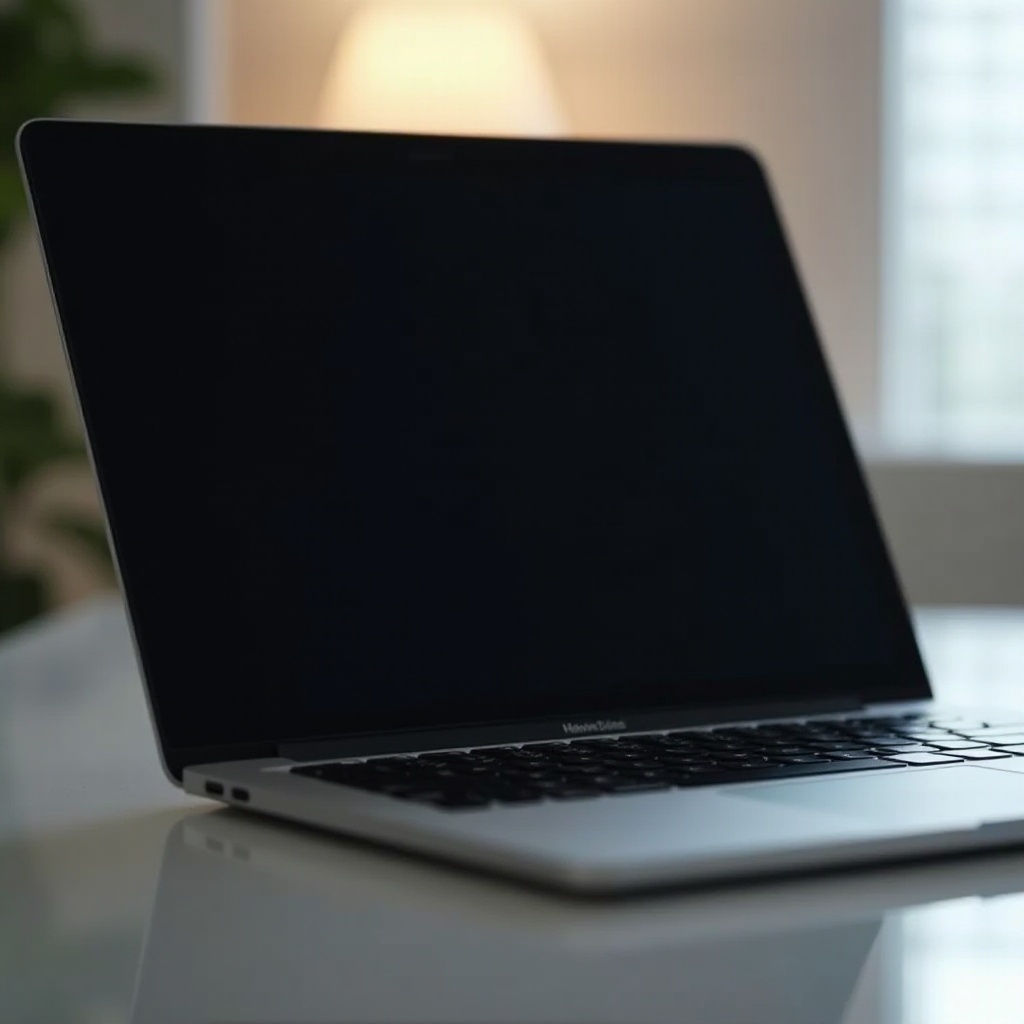
Common Reasons for a Dark MacBook Screen
Let’s explore what could cause your MacBook screen to appear darker than usual, helping you pinpoint the issue more quickly.
-
Software-Related Issues
Often, default software settings make the screen dimmer to conserve battery or adapt to changing light conditions. Features like automatic brightness adjustment and energy-saving modes can lower screen brightness under certain conditions. -
Hardware Concerns
Another possibility is hardware malfunction. Components like the backlight or screen itself might be faulty, potentially resulting in screen dimming or darkening. -
Environmental Factors
The surroundings can also affect screen brightness. The MacBook’s sensors may lower brightness based on ambient light levels in the environment, impacting visibility.
Having identified potential reasons, it is time to move on to initial troubleshooting measures that might help solve the problem immediately.
Initial Troubleshooting Steps
If your MacBook screen is unexpectedly dark, these primary troubleshooting steps should be your first course of action.
- Adjust Screen Brightness Settings
- Press the brightness keys on the keyboard to manually increase brightness.
-
Access ‘System Preferences,’ navigate to ‘Displays,’ and adjust the brightness slider accordingly.
-
Check Power Source and Connections
- Confirm your MacBook is connected to a reliable power source and charging properly.
-
Inspect power adapters and cables for any signs of wear or damage that could affect power supply.
-
Review Auto-Brightness and Night Shift Settings
- Open ‘System Preferences’ and locate ‘Displays’.
- Disable ‘Automatically adjust brightness’ to personally control brightness settings.
- Double-check ‘Night Shift’ settings to ensure they aren’t overly dimming the screen at certain hours.
Once these steps are followed and the screen remains dark, a deeper dive into advanced troubleshooting might be necessary to resolve persistent issues.
Advanced Troubleshooting Techniques
When initial measures don’t yield results, advanced steps can often solve deeper, more complicated issues.
- Reset the System Management Controller (SMC)
Resetting the SMC is known to fix numerous power-related problems: - Shut down your MacBook.
- For models with a T2 security chip: Hold ‘Control’ + ‘Shift’ + ‘Option’ on the left-hand side and press the power button for at least 10 seconds. Release all buttons and turn on your MacBook.
-
For other models: Replace ‘Control’ with ‘Function’.
-
Reset the NVRAM/PRAM
Resetting the NVRAM/PRAM often resolves settings related to displays and resolution: - Shut down your MacBook.
- Turn it back on, holding down ‘Option’ + ‘Command’ + ‘P’ + ‘R’ keys simultaneously.
-
Keep pressing the keys for about 20 seconds.
-
Update macOS and Check for Software Glitches
Working with the latest macOS can eliminate bugs affecting brightness: - Open ‘System Preferences’ and select ‘Software Update’.
- Complete any necessary updates and reboot your MacBook.
Without resolution, these steps might indicate a problematic hardware component. A closer inspection of individual hardware issues is warranted.
Identifying Hardware Failures
In cases where a software fix doesn’t solve the issue, hardware malfunction could be the root cause.
-
Screen or Backlight Issues
A defective backlight or damaged screen can make your screen go dark. Inspect the physical screen for any noticeable issues like cracks or irregularities. -
Logic Board Damage
Damage to the logic board could also impact screen brightness settings. If other potential causes have been ruled out, professional evaluation is recommended. -
Options for Repair and Professional Assistance
If hardware problems seem likely, contact Apple’s support services for professional repair or consider leveraging AppleCare, if applicable.
Resolving these obstacles is key to keeping your MacBook functional, and proactive measures can help ensure you don’t face similar issues down the line.
Preventive Measures to Avoid Screen Issues
By following preventive measures, you can protect your MacBook from future screen dimming issues.
-
Regular Software Maintenance
Regular updates will keep your software running smoothly, solving bugs that might otherwise affect screen performance. -
Proper Physical Care of Your MacBook
Handle your device carefully, avoid excessive heat or cold, and store it safely when not in use. Proper care extends the life of your MacBook and reduces the risk of physical damage. -
Utilizing Protective Accessories
Invest in screen protectors and durable cases to shield the device from physical impacts, keeping both the exterior and interior components safe.
Conclusion
Dealing with a dark MacBook screen doesn’t have to be daunting. With an understanding of potential causes and solutions, you can restore screen brightness and maintain device integrity. By leveraging this guide, resolving current issues, and preventing future ones, your MacBook will remain a reliable tool in your digital life.
Frequently Asked Questions
How can I adjust the brightness on my MacBook manually?
You can manually adjust the brightness using the F1 and F2 keys on your keyboard.
What should I do if resetting the SMC and NVRAM/PRAM doesn’t work?
If these resets don’t work, consider professional repair services to check for hardware malfunctions.
How often should I update my macOS to prevent screen issues?
Regularly check for macOS updates and install them as they become available to prevent screen and system issues.