
Introduction
Samsung TVs offer impressive features and stunning visuals, essential for an optimal entertainment experience. Establishing the proper connections is key to enjoying every feature fully. Whether you are setting up your TV for the first time or enhancing your existing setup, understanding how to connect your devices correctly will maximize your viewing pleasure. This guide covers everything from hooking up devices to leveraging wireless connectivity and optimizing your Samsung TV’s performance.
Understanding Samsung TV Ports and Connectors
Identifying the ports and connectors on your Samsung TV is the first step in achieving a comprehensive setup. These ports are the entry points for video, audio, and data into your TV.
-
HDMI Ports and Their Importance: HDMI ports are the most integrated connection type in modern TVs, including Samsung models. They support high-definition audio and video through a single cable. Samsung TVs typically come with multiple HDMI ports, allowing for the simultaneous connection of several devices, such as gaming consoles and Blu-ray players.
-
USB and Other Input Options: USB ports on Samsung TVs can play media files directly from storage devices and are utilized for software updates. They can also connect peripherals like keyboards or cameras, enhancing internet browsing and video calling experiences.
-
Identifying and Using Audio Ports: Audio ports are essential for enriching your viewing with external sound systems. Samsung TVs feature various audio output options, such as optical audio out and headphone jacks, allowing the connection to soundbars and home theater systems.
With a clear understanding of the ports available on your Samsung TV, you can begin integrating additional external devices to expand your entertainment options.
Connecting External Devices to Your Samsung TV
Connecting external devices to your Samsung TV is straightforward and expands your entertainment capabilities.
-
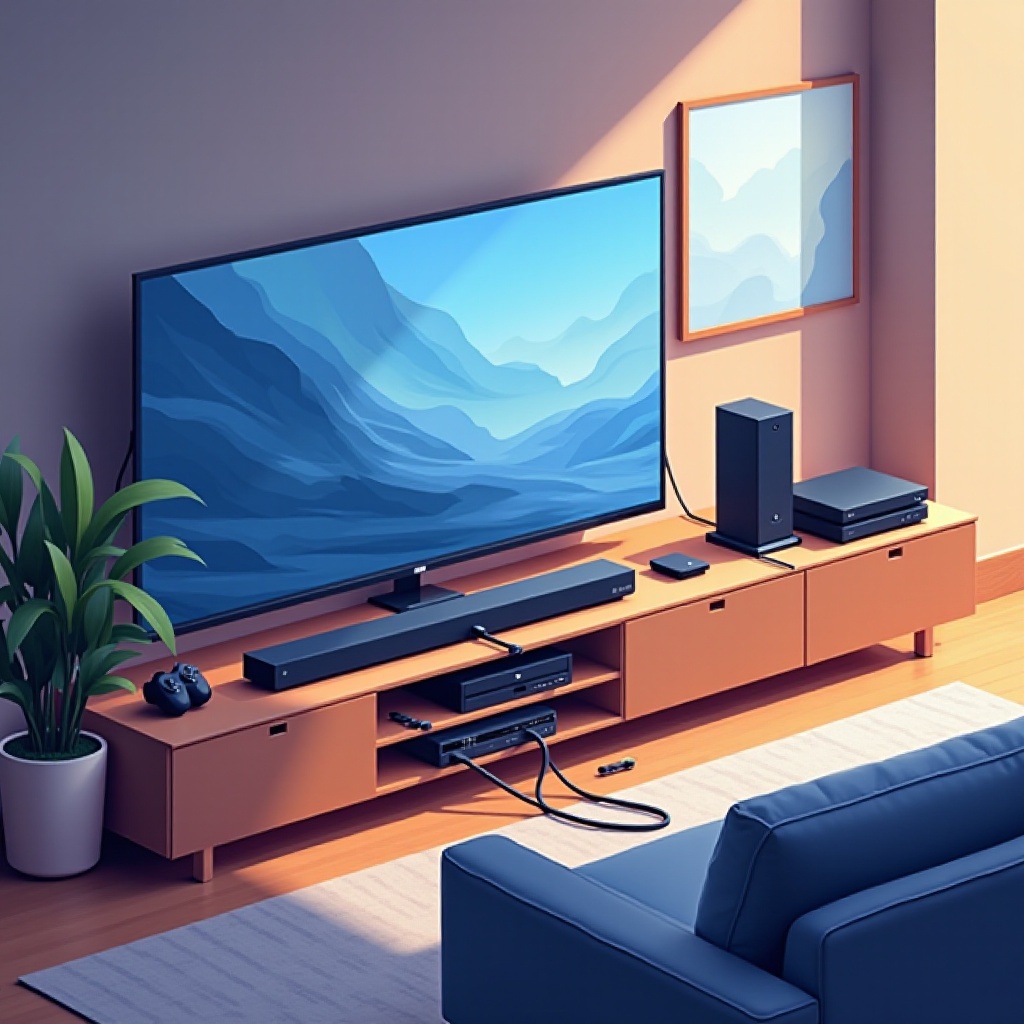
Setting Up Gaming Consoles: Most gaming systems use HDMI cables to connect to Samsung TVs. Simply insert one end of the HDMI cable into the gaming console and the other into a free HDMI port on your TV. Use the TV remote to select the correct HDMI input.
-
DVD/Blu-ray Player Connections: Connecting a DVD or Blu-ray player follows a similar process. Use an HDMI cable for a flawless connection. Insert your disc and ensure you have selected the appropriate HDMI input for immediate playback.
-
Sound System Integration: Integrate your sound system for a more immersive audio experience. Using the HDMI ARC (Audio Return Channel) port minimizes cable use by carrying both audio and video signals. Optical cables can also be utilized for audio connectivity if supported by your equipment.
After connecting your external devices, it’s time to move on to setting up wireless connections, a vital aspect for accessing online content and Samsung Smart TV features.
Establishing Wireless Connections on Samsung TVs
Wireless connectivity is a must-have for accessing streaming content and enhancing TV functionality. Here’s how to set up and troubleshoot these connections:
-
How to Connect Your TV to Wi-Fi: Go to the TV’s home screen, enter the settings menu, choose ‘Network’, select ‘Network Settings’, then ‘Wireless’. Pick your Wi-Fi network from the list and enter the password to connect.
-
Bluetooth Pairing for Audio Devices: Samsung TVs support Bluetooth connectivity, allowing for wireless pairing with speakers and headphones. Navigate to the ‘Sound’ menu in settings, select ‘Sound Output’, and find ‘Bluetooth Speaker List’ to locate and pair your device.
-
Troubleshooting Wireless Connection Issues: If connectivity falters, check the distance between your router and TV for obstructions, restart both devices, and attempt reconnecting. Consider repositioning your router or checking for firmware updates if problems persist.
With wireless connections established, maximize Samsung’s array of Smart TV features.
Maximizing Samsung Smart TV Features
Unlock the full potential of your Samsung Smart TV by taking advantage of its diverse features.
-
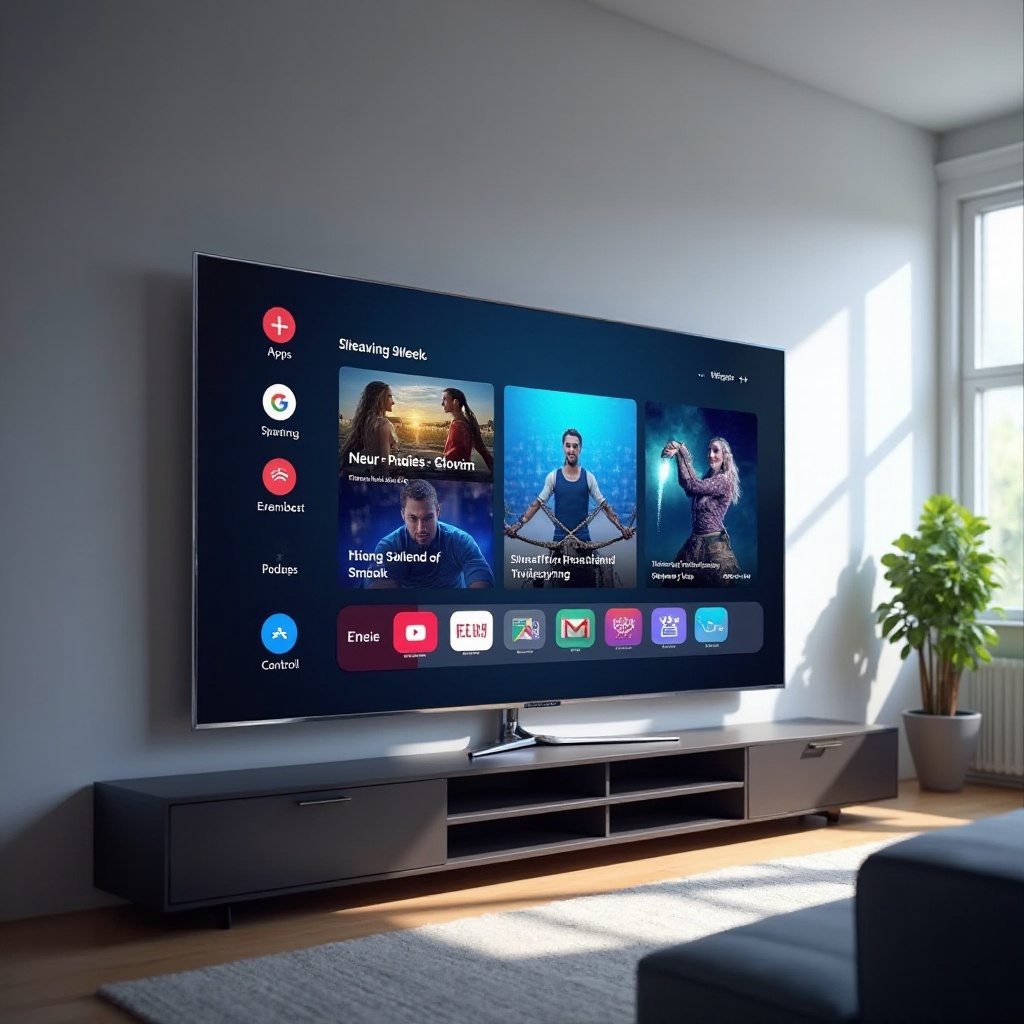
Utilizing Samsung Smart Hub: The Smart Hub is central for accessing streaming services, games, and the internet. You can navigate and customize it by placing your favorite apps on the home screen.
-
Installing and Managing Streaming Apps: Launch the App Store from the Smart Hub to download popular streaming applications such as Netflix, Hulu, and Disney+. These apps can be easily managed and updated from within the hub settings.
-
Using Screen Mirroring and Casting Options: Enjoy casting your smartphone or tablet content onto the big screen via screen mirroring. Activate your mobile device’s screen mirroring feature and pair it with your TV selection. Many streaming apps will have casting functionality built-in for ease of use.
Once you’ve activated and organized these features, consider some advanced tips for keeping your TV running at its best.
Advanced Tips for Optimal TV Performance
To maintain your Samsung TV’s peak performance, regular care and adjustments are essential.
-
Keeping Firmware Updated: Keeping firmware updated is crucial for security and functionality enhancements. Enable automatic updates in the settings menu to simplify the process.
-
Calibration for Best Picture Quality: Calibration ensures the best picture, tailored to your viewing environment. Adjust brightness, contrast, and color to suit the room lighting or consult online resources for model-specific guidance.
-
Audio Enhancements and Settings: Explore different sound modes to match the type of content you’re enjoying. Switching to ‘Cinema’ for films or ‘Game’ mode for gaming can significantly enhance your experience.
When issues arise, having effective troubleshooting methods at hand can minimize disruptions.
Troubleshooting Common Connection Problems
Handling common connectivity issues efficiently can save you time and frustration.
-
Addressing No Signal Errors: No signal usually means the incorrect source is selected. Ensure the TV is set to the HDMI input corresponding to your connected device, and check all cables are firmly seated.
-
Resolving Audio Issues: If there’s no sound, first confirm that the TV volume isn’t muted and all external equipment is powered on. Switching audio output settings often resolves any discrepancies.
-
Managing Connectivity Dropouts: Persistent Wi-Fi dropouts may benefit from an Ethernet connection for more stable connectivity. Alternatively, reducing wireless interference by adjusting router channel settings can yield improvements.
With these troubleshooting tactics, you’ll be well-equipped to fix common disruptions quickly.
Conclusion
By following this comprehensive Samsung TV guide, you’ll ensure a seamless entertainment setup that maximizes sound and visual quality, whether through enhancing existing systems or fully leveraging new smart features.
Frequently Asked Questions
How do I connect my Samsung TV to my home network?
Access your TV’s settings, select ‘Network’, choose ‘Network Settings’, then ‘Wireless’, and find your home Wi-Fi network to connect.
What should I do if my Samsung TV has no sound?
Check if the volume is muted, ensure external audio devices are on, and switch audio outputs in your settings menu.
How can I update my Samsung TV’s firmware?
Go to ‘Settings’, select ‘Support’, then ‘Software Update’, and choose ‘Update Now’ to keep your firmware up to date.