
Introduction
Facing the ‘No SIM card detected’ message on your phone can disrupt your day, especially when you rely on instant communication. Such message indicates that your device cannot connect to your service provider’s network. This article will guide you through common causes and effective solutions to this problem.
Understanding the ‘No SIM Card Detected’ Issue
Before diving into fixes, it’s essential to understand the reasons behind this error. The error might arise from a mispositioned SIM card, a glitch in your phone’s software, or issues with your network carrier. Grasping these causes allows for a more targeted approach to solving the error and ensuring smooth operation.
- Improper SIM Placement: Misalignment can prevent recognition of your SIM card.
- Software Glitches: Outdated software or conflicting apps might disrupt the SIM card connection.
- Carrier and Network Issues: External network issues can lead to temporary unavailability of services.
Equipped with this insight, you can implement quick solutions to re-establish connectivity.
Quick Fixes to Resolve the Error
Start with these straightforward solutions to address minor issues your phone may face:
- Restart Your Phone: Power cycling your device can allow the phone to reset connections, sometimes resolving the SIM card issue instantly.
- Check SIM Card Placement: Remove and reseat your SIM card to ensure proper alignment and secure positioning.
- Toggle Airplane Mode: Turn Airplane mode on for a few seconds and then off to reset your device’s network connections.
These quick fixes often resolve minor glitches, returning your device to normal function. If these don’t work, further steps are necessary to diagnose the problem.
Software Solutions to Try
With simple fixes ruled out, you may need to consider solutions aimed at fixing software-related issues:
- Update Your Operating System: Ensure your phone’s operating system is current, as updates often include fixes for known issues.
- Reset Network Settings: Navigate to Settings > General Management > Reset > Reset Network Settings. This clears potential conflicts and resets your phone’s network configuration.
- Remove Unnecessary Apps: Occasionally, third-party apps may interfere with SIM functionality. Uninstall apps that are unused or unnecessary.
These software solutions often address persistent connectivity issues that simple fixes cannot resolve.
Inspecting the SIM Card
Physical issues with the SIM card might be the source of your troubles. Implement these strategies:
- Check for Physical Damage: Carefully examine the SIM card for any signs of damage. Replace it if you see scratches or cracks.
- Clean the SIM Card and Tray: Dust and debris can cause poor connectivity, so clean both your SIM card and its tray using a soft, lint-free cloth.
- Test SIM Card in Another Device: Try using your SIM card in a different phone to see if the issue persists, helping determine whether the card or device is at fault.
By following these steps, you can decide whether a new SIM card is needed or if the problem lies elsewhere.
Addressing Network and Carrier Issues
Connectivity problems can also stem from network-related issues, making it crucial to ensure the following:
- Verify Carrier Settings: Confirm your phone’s settings match your carrier’s requirements, often found through customer service or online platforms.
- Contact Your Carrier: If there are known service disruptions, your carrier can confirm whether repairs or adjustments are underway.
- Check for Local Network Issues: Verify there are no maintenance alerts or outages affecting your area, as they can temporarily impact service availability.
Once external issues are ruled out, consider any hardware concerns that might be in play.
Identifying Hardware Issues
When systematic troubleshooting points to hardware, incorporate these strategies:
- Recognize a Faulty SIM Card Slot: If your SIM card or slot seems unreliable, it may signal a need for hardware repair.
- Seek Professional Repair Services: Engage a certified technician to inspect and correct potential hardware faults for a secure, reliable fix.
Hardware issues, though less common, require professional diagnostics to avoid exacerbating the situation.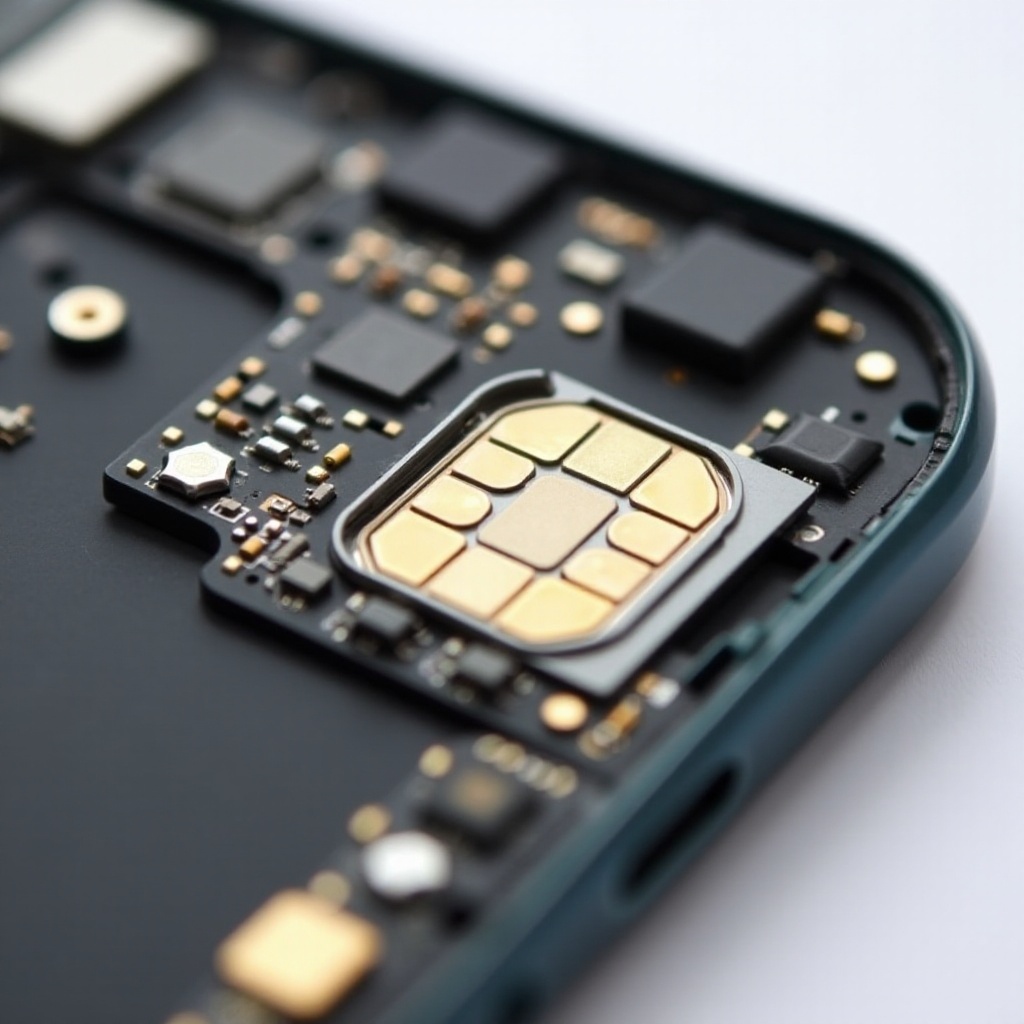
Conclusion
Addressing the ‘No SIM card detected’ error calls for a structured method. From simple quick fixes to more in-depth inspections of hardware and network settings, each step reduces the potential causes until your device operates smoothly. If problems persist, professional assistance ensures that underlying hardware faults are managed correctly.
Frequently Asked Questions
What causes the ‘No SIM Card Detected’ error?
Improper SIM placement, software glitches, or network interruptions are common causes of this error.
How can I prevent this issue from happening again?
Regularly check the physical state of your SIM, keep your software updated, and restart your device periodically.
When should I contact my phone manufacturer for help?
If hardware issues are suspected and troubleshooting doesn’t resolve the error, contacting your phone’s manufacturer is advisable.