
Misplacing your Sanyo TV remote or finding it dysfunctional can be inconvenient. However, you can still enjoy your TV without being limited by the remote’s absence. This guide will walk you through diverse methods to turn on your Sanyo TV without a remote, ensuring uninterrupted entertainment. We will delve into manual controls, digital alternatives, and the latest smart technologies.
Introduction
Sanyo TVs offer numerous features for an enhanced viewing experience. While the remote is a convenient tool, there are times it goes missing or stops functioning. Fortunately, that doesn’t mean you have to go remote-less. This article explains how to manage your Sanyo TV efficiently, using accessible methods to activate it without the original remote control.
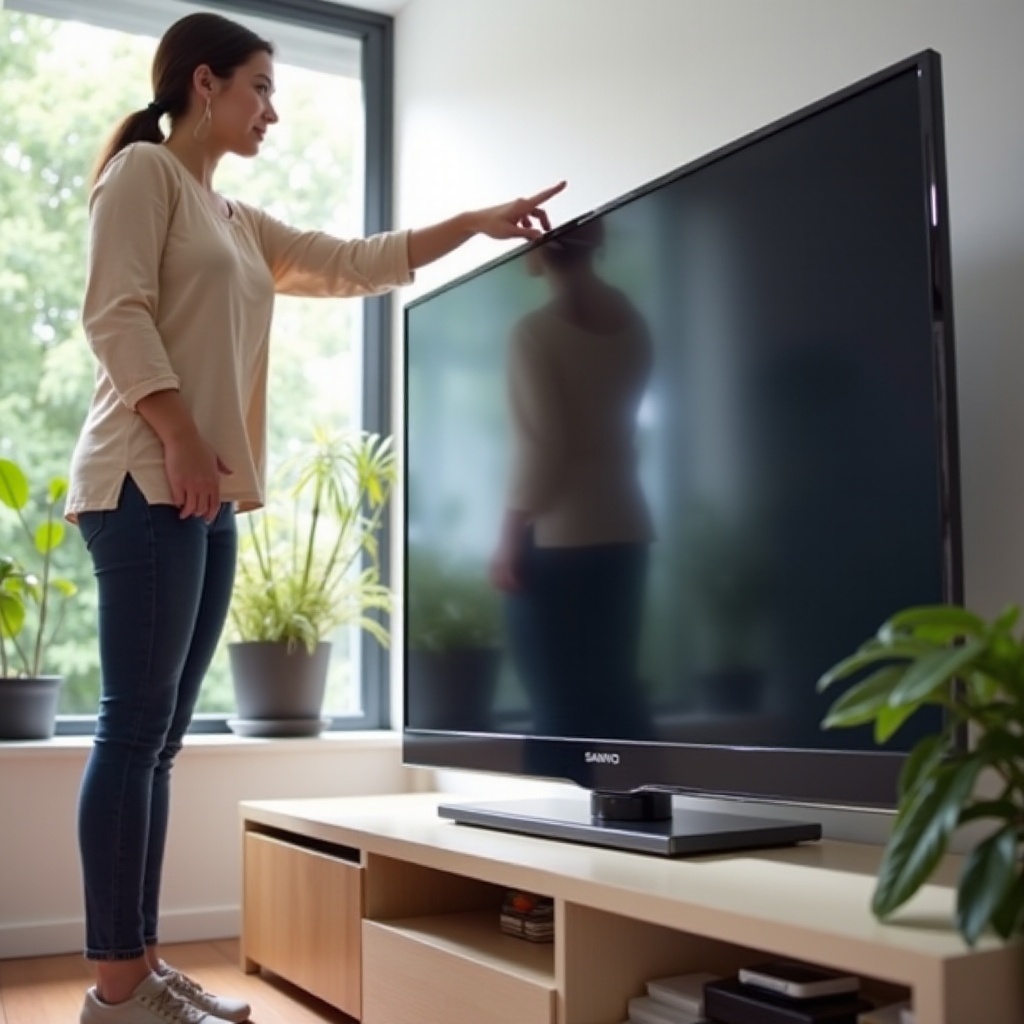
Locating and Using Manual Controls on a Sanyo TV
Starting with the basics, you can manually turn on the TV using built-in controls. Most Sanyo TVs come with a simple control panel on the TV itself.
-
Identifying the Button Panel: Locate the power button typically nestled on the side or bottom of your TV frame. These panels usually include buttons for power, volume, and channel changes.
-
Step-by-Step Guide to Using Manual Controls:
- Stand in front of your TV and seek out the control panel on the side or bottom.
- Identify the power button, often marked with a standard symbol (a circle with a line through it).
-
Gently press and hold the power button for a couple of seconds to power the TV.
-
Troubleshooting Manual Button Issues: Manual buttons can sometimes be unresponsive due to dust or grime. Cleaning them with a dry cloth may restore functionality. If issues persist, ensure the TV is correctly connected to a power source.
While manual methods are practical, digital alternatives provide a modern solution to this everyday problem.
Digital Alternatives for Remote-Free TV Operation
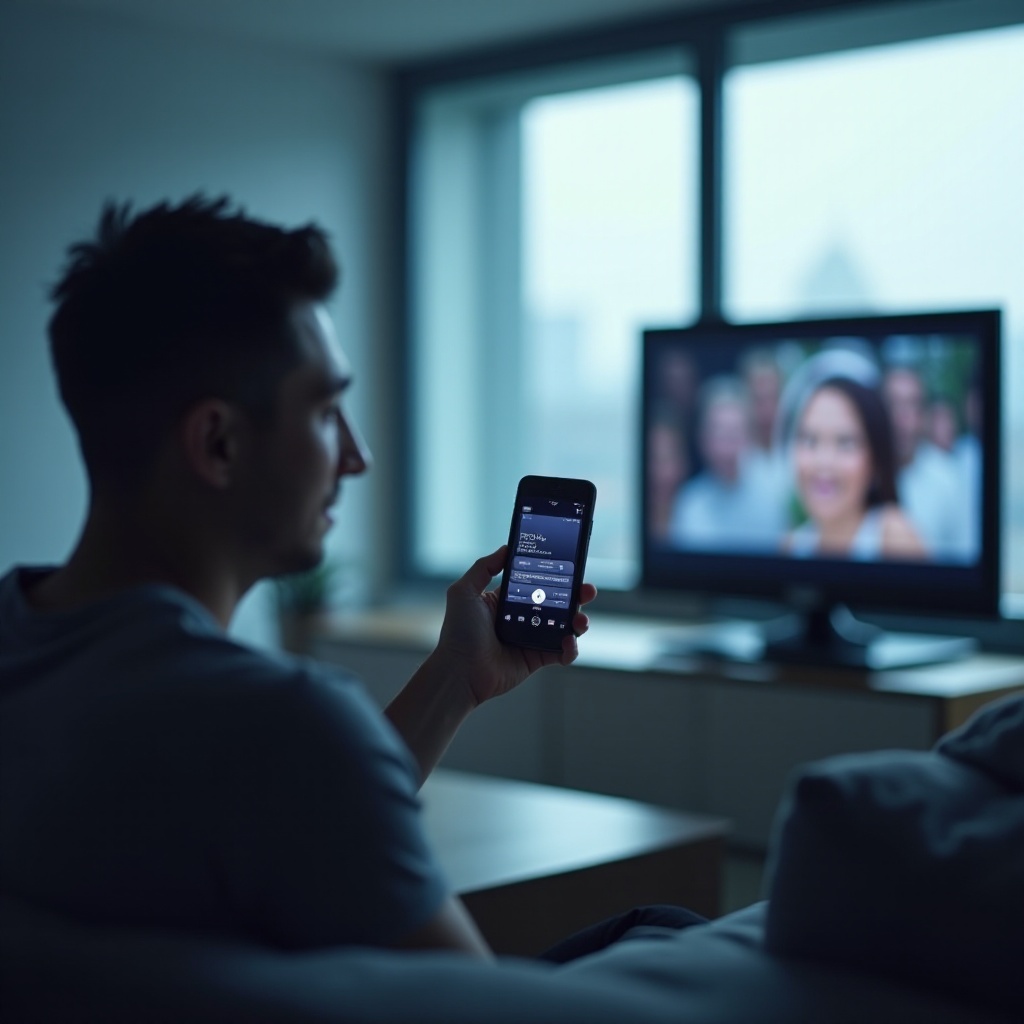
As technology advances, so do the options for controlling electronic devices. Smartphones have transformed into universal remote controls, capable of managing your TV effortlessly.
-
Using Your Smartphone as a Remote: With various apps, your smartphone can efficiently function as a remote control for your Sanyo TV.
-
Downloading and Setting Up Remote Apps:
- Search your device’s app store for remote control apps compatible with Sanyo TVs.
- Install your chosen app and follow the instructions to sync it with your TV.
-
After successful setup, utilize your phone to power on the TV and navigate as needed.
-
Best Apps for Sanyo TVs in 2024: Some reputable apps include ‘Sanyo TV Remote Control’, ‘AnyMote’ or ‘Smart IR Remote’. These apps provide additional control features long after your TV is switched on.
Convenience increases when transitioning from smartphone control to universal remotes.
Universal Remote Solutions
Universal remotes remain a reliable backup for original TV remotes, offering extensive compatibility with various brands, including Sanyo.
-
Selecting the Right Universal Remote: When purchasing, ensure the universal remote specifies compatibility with Sanyo TVs.
-
Programming Instructions for Sanyo TVs:
- Insert fresh batteries into your universal remote.
- Use the code list included or visit the manufacturer’s website to find your TV’s corresponding codes.
- Enter the code using the keypad and attempt to power on the TV.
These remotes can permanently replace your original remote, integrating seamlessly into your device setup. The progressive leap to smart technology only widens the possibilities for interaction.
Enhancing Functionality with Smart Technology
Smart technology has become integral in households, allowing users to control devices with minimal effort.
-
Integrating Smart Speakers: Sanyo TVs with smart capabilities can connect to devices like the Amazon Alexa or Google Home to operate through voice commands.
-
Configuring Voice Command Features:
- Ensure your Sanyo TV supports connections with smart home devices.
- Set up your smart speaker according to the included instructions, integrating it with your TV.
- Once connected, manage your TV using simple voice commands via your smart speaker.
Smart integration offers a more hands-free approach to manage your home entertainment systems, accommodating a seamless TV viewing experience.
Conclusion
If you’ve misplaced your Sanyo TV remote or it’s momentarily unavailable, don’t worry. We’ve outlined multiple user-friendly methods for powering on your TV. Whether leveraging the manual interface, exploring smartphone capabilities, adapting universal remotes, or harnessing smart technology, you’ll find a solution that fits your needs. Each method ensures you remain in control, maintaining access to your favorite shows and movies regardless of the circumstances.
Frequently Asked Questions
Can I use any universal remote with my Sanyo TV?
Most universal remotes are compatible with Sanyo TVs. Always verify compatibility in the product’s details before purchase.
What should I do if manual buttons stop working?
First, clean the buttons gently to remove dirt or debris. Ensure electrical connections are intact, and contact a technician if issues persist.
Are there any risks in using third-party remote apps?
Reputable apps are generally safe, but ensure you download from trusted sources to avoid security risks or malware.